Manual Game Client Setup Guide This guide is divided into three versions based on the expansion you intend to play:
Each version includes specific steps for properly configuring the client, logging in, and launching the game without using the Vendetta-launcher.exe. If you already have the game client installed, you can skip this step and proceed directly to section 2. Configuring the client. Downloading the Game Client You can download the game client from our website by following these steps: - Log in to your game account on our website using the "Log in" button located in the top right corner. - Once logged in, click the "Download" button at the top of the page. - In the displayed table, select the files you wish to download. In this case, it will be the game files including the “Wrath of the Lich King” expansion. Extracting the Downloaded Files After downloading: - Right-click on the first file "World of Warcraft.7z.001". - Choose "Show more options" and then "Extract All...". - Your computer will prompt you for a password. The password is listed directly in the table where you downloaded the files. Decompression Software If you don’t have a program installed that can extract files in the .7z format, we recommend downloading and installing 7-Zip from the official website: Once the files are successfully extracted, you can proceed to the next step – "Configuring the client". First, open the game folder. Inside it, navigate to the subfolder "Data" -> "enUS" and open the file realmlist.wtf. (To open the file, double-click it with the left mouse button. In the window that appears, choose "Select a program from the list", click "OK", select "Notepad", and confirm again with "OK".) Once the realmlist.wtf file is open, replace the original line "set realmlist us.logon.worldofwarcraft.com" with "set realmlist srv1.vendetta-online.eu:13724". Also, change the line "set patchlist us.version.worldofwarcraft.com" to "set patchlist srv1.vendetta-online.eu:13724". Then save the file. The final content of the realmlist.wtf file should look like this: 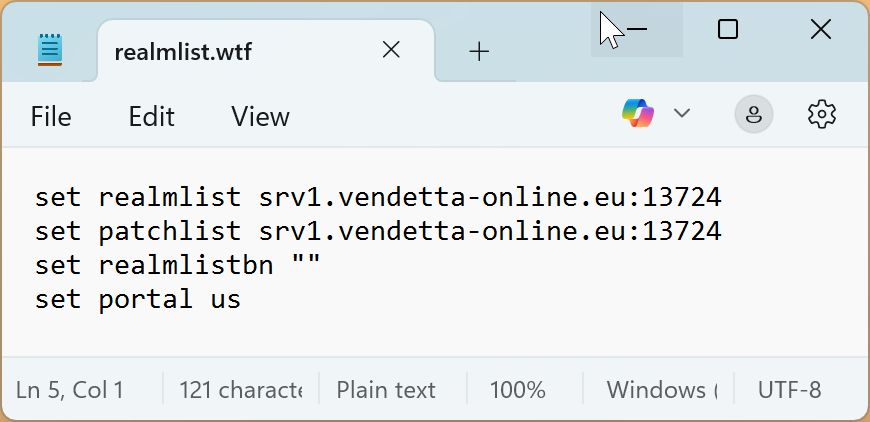 This completes the client configuration for our server. Start the game using the wow.exe file located directly in the game folder. Use the same username you chose when registering your account on this website. 1. Downloading the Game Client You can download the game client from our website by following these steps: - Log in to your game account on our website using the "Log in" button located in the top right corner. - Once logged in, click the "Download" button at the top of the page. - In the displayed table, select the files to download. In this case, you’ll need the game files with the “Midnight” expansion. Downloading the Custom Server Game Launcher Download the "Custom Server Game Launcher" from the official website. This program allows you to connect to the game on unofficial servers. Visit the site: On the page, click the green button labeled "Download Launcher" – this will automatically download the file to your computer. Extracting the Downloaded Files After downloading: - Right-click on the first file "World of Warcraft.7z.001". - Select "Show more options" and then "Extract All...". - Your computer will prompt you for a password. The password is listed directly in the table where you downloaded the files. Decompression Software If you don’t have a program installed that can extract files in the .7z format, we recommend downloading and installing 7-Zip from the official website: Moving and Extracting the Launcher The file "Arctium Game Launcher 1.2.3.141.zip" (the name may vary depending on the version you downloaded) should first be moved to your game folder, specifically into the "_retail_" subdirectory. Only then should you extract the contents of the ZIP file directly within that subdirectory. Once all files are successfully extracted, you can proceed to the next step – "Configuring the client". Now return to the game directory. Open the "_retail_" folder, then navigate to the "WTF" subfolder. Inside, locate the file "Config.wtf" and open it using a program such as Notepad. In the file, find the line starting with SET portal and replace it with the following: SET portal "srv3.vendetta-online.eu:31119" Next, locate the line starting with SET realmlist and replace it with this line: SET realmlist "srv3.vendetta-online.eu:38081" This completes the configuration of your game client for playing on our server. Don’t forget to save the file. Launch the game using the file "Arctium Game Launcher.exe", located in the "_retail_" subdirectory. Log in to the game using a username in the format username@vendetta. For example, if your chosen username is proton, you should log in as proton@vendetta. | Author: Mic-net | Released on: 10/10/2025 8:58 am | |


PLAYERS ONLINE:
0
Here you can play World Of Warcraft for free with the datadiscs The Burning Crusade (BC), Wrath Of The Lich King (WotLK), Cataclysm (Cata), Mists of Pandaria (MoP), Warlords of Draenor (WoD), Legion, Battle for Azeroth (BfA), Shadowlands (SL), Dragonflight (DF), The War Within, Midnight, or Last Titan. The server is called Private World Of Warcraft server Vendetta (short Private WoW server Vendetta, formerly the Free World Of Warcraft server Vendetta or the Free WoW server Vendetta). World Of Warcraft is a great MMORPG, so do not hesitate and come join us. If you are looking for a Free WoW server (Free World of Warcraft server), you are in the right place.
Publication or redistribution of Vendetta server content is prohibited without the written consent of the server administrator.
Some of the names of software products, companies, etc. used may be protected by registered trademarks of their respective owners.
This website has nothing to do with the company Blizzard Entertainment.
Copyright © 2006 - 2026 Mic-net
All rights reserved.
Some of the names of software products, companies, etc. used may be protected by registered trademarks of their respective owners.
This website has nothing to do with the company Blizzard Entertainment.
Copyright © 2006 - 2026 Mic-net
All rights reserved.